
Calculate your Deadlock eDPI, cm/360, inches/360, and matching sensitivity for a new DPI.
Deadlock eDPI Calculator: Does Polling Rate Affect Sensitivity?
Your Deadlock eDPI
1200
Balanced
cm/360: 17.3 cm
inches/360: 6.8 in
Matching Sensitivity: 0.750 at 1600 DPI
Target Sensitivity: 1.500 for 1200 eDPI
Degrees Per Count: 0.0660
Aim Style: Balanced Tracking
Recommendation
Your eDPI is in a balanced range for Deadlock. Keep this setting if tracking and turning both feel comfortable.
How This Calculator Works
- eDPI equals mouse DPI multiplied by Deadlock sensitivity.
- cm/360 estimates how far you move your mouse for a full 360 degree turn.
- If you double DPI, cut sensitivity in half to keep the same eDPI.
- Polling rate does not change eDPI, but it can change how sensitivity feels.
A Deadlock eDPI calculator helps you find your effective sensitivity by using your mouse DPI and Deadlock in game sensitivity. It is useful when your aim feels too fast, too slow, or different from other games like CS2, Valorant, Overwatch 2, Apex Legends, or Marvel Rivals.
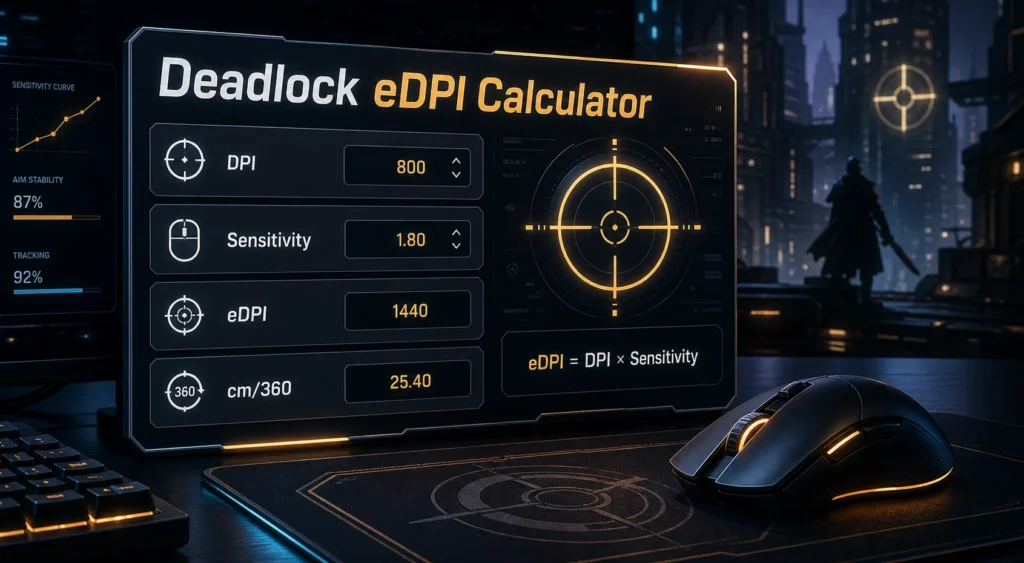
Many players also ask one important question: does polling rate affect sensitivity? The short answer is no, polling rate does not directly change your eDPI or cm/360. But it can change how your mouse feels because it affects how often your mouse sends input to your PC.
This guide explains Deadlock eDPI, cm/360, DPI, sensitivity, polling rate, and how to choose settings that feel clean for aim, tracking, and movement. check out more Marvel Rivals eDPI Calculator
What Is Deadlock eDPI?
eDPI means effective DPI. It is a simple number that combines your mouse DPI and your Deadlock sensitivity.
Deadlock eDPI = Mouse DPI × Deadlock Sensitivity
Example:
- 400 DPI × 2.0 sensitivity = 800 eDPI
- 800 DPI × 1.0 sensitivity = 800 eDPI
- 1600 DPI × 0.5 sensitivity = 800 eDPI
All three settings have the same eDPI. That means they should feel similar in overall turning speed, even though the DPI and sensitivity values are different.
What Is a Deadlock eDPI Calculator?
A Deadlock eDPI calculator is a tool that helps you calculate your real sensitivity value. Instead of guessing, you enter your DPI and in game sensitivity, then the calculator gives you your eDPI.
A good Deadlock eDPI calculator should show:
- Your current eDPI
- Your cm/360
- Your inches/360
- Your matching sensitivity at another DPI
- Your sensitivity rating
- A lower or higher sensitivity suggestion
- Quick DPI presets like 400, 800, 1600, and 3200
This helps you compare settings without losing your aim feel.
Why eDPI Matters in Deadlock
Deadlock is not a slow tactical shooter. It mixes hero shooter aim, movement, vertical fights, lane pressure, tracking, abilities, and fast target switching. Because of that, your sensitivity needs to feel controlled but not too slow.
eDPI matters because it affects:
- Tracking moving heroes
- Turning quickly during close fights
- Aiming up and down during vertical movement
- Following targets while using abilities
- Landing precise shots at mid range
- Keeping control during chaotic team fights
If your eDPI is too low, turning can feel heavy. If your eDPI is too high, tracking and small corrections can feel shaky.
Deadlock eDPI Formula
The basic formula is simple:
eDPI = DPI × in game sensitivity
Example calculation
- Mouse DPI: 800
- Deadlock sensitivity: 1.5
800 × 1.5 = 1200 eDPI
Your Deadlock eDPI is 1200.
Deadlock cm/360 Formula
cm/360 means how many centimeters you need to move your mouse to turn 360 degrees in game.
Some Deadlock sensitivity tools use yaw values to estimate cm/360. Search results show different tools using different Deadlock yaw assumptions, so your calculator should be clear about the yaw value it uses.
Common formula
cm/360 = 360 ÷ (yaw × sensitivity × DPI) × 2.54
For players, cm/360 is often more useful than raw sensitivity because it tells you the real physical mouse movement needed for a full turn.
Good eDPI Range for Deadlock
There is no perfect eDPI for every player, but Deadlock usually feels better with a sensitivity that allows both tracking and fast turns.
General Deadlock eDPI ranges
- Low eDPI: under 800
- Balanced eDPI: 800 to 1800
- Fast eDPI: 1800 to 3000
- Very fast eDPI: above 3000
Many players will feel comfortable somewhere between 800 and 2500 eDPI, depending on DPI, mousepad size, monitor refresh rate, and aim style.
Best Deadlock Sensitivity by DPI
Use these values as starting points. Adjust them after testing in real fights.
400 DPI
- Low control: 1.5 to 2.0 sensitivity
- Balanced: 2.0 to 4.0 sensitivity
- Fast: 4.0 to 6.0 sensitivity
800 DPI
- Low control: 0.75 to 1.0 sensitivity
- Balanced: 1.0 to 2.0 sensitivity
- Fast: 2.0 to 3.0 sensitivity
1600 DPI
- Low control: 0.35 to 0.5 sensitivity
- Balanced: 0.5 to 1.0 sensitivity
- Fast: 1.0 to 1.5 sensitivity
3200 DPI
- Low control: 0.18 to 0.25 sensitivity
- Balanced: 0.25 to 0.5 sensitivity
- Fast: 0.5 to 0.75 sensitivity
Does Polling Rate Affect Sensitivity?
Polling rate does not directly affect sensitivity. It does not change your DPI, eDPI, or sensitivity number.
Polling rate controls how often your mouse reports movement to your computer.
Common polling rates
- 125Hz reports every 8 milliseconds
- 250Hz reports every 4 milliseconds
- 500Hz reports every 2 milliseconds
- 1000Hz reports every 1 millisecond
- 2000Hz reports every 0.5 milliseconds
- 4000Hz reports every 0.25 milliseconds
- 8000Hz reports every 0.125 milliseconds
If you use 800 DPI and 1.5 sensitivity, your eDPI is still 1200 whether your polling rate is 500Hz, 1000Hz, or 4000Hz.
Why Polling Rate Can Feel Like It Changes Sensitivity
Even though polling rate does not change actual sensitivity, it can change how sensitivity feels.
Higher polling rate can feel:
- More responsive
- Smoother during tracking
- Sharper during flicks
- Less delayed
- More connected to hand movement
Lower polling rate can feel:
- Heavier
- Less smooth
- Slightly delayed
- More floaty
- Less precise during micro movement
This is why some players switch from 500Hz to 1000Hz and feel like their sensitivity became faster. The actual turn distance usually stays the same. The input is simply arriving more often.
500Hz vs 1000Hz for Deadlock
For most Deadlock players, 1000Hz is the best default polling rate. It gives frequent mouse updates without being too demanding for most modern PCs.
Use 1000Hz if:
- You play Deadlock competitively
- Your PC runs the game smoothly
- You use a modern gaming mouse
- You play on a 144Hz, 165Hz, 240Hz, or higher monitor
- You want smoother tracking and faster response
Use 500Hz if:
- 1000Hz causes stutter
- Your PC is older
- Your wireless mouse battery drains too fast
- You cannot feel a difference
- You want steadier input over lower delay
Stable 500Hz is better than unstable 1000Hz.
Does 4000Hz or 8000Hz Help in Deadlock?
Very high polling rates can feel smoother on strong systems, especially with high refresh monitors. But they are not required for good aim.
4000Hz or 8000Hz may help if:
- You have a strong CPU
- Your game runs at high stable FPS
- Your mouse supports it cleanly
- Your monitor is 240Hz or higher
- You are sensitive to input delay
Very high polling may hurt if:
- Your game stutters
- Your CPU usage spikes
- Your wireless battery drains quickly
- Your mouse software is unstable
- Your game does not handle high input event rates well
If Deadlock feels strange at 4000Hz or 8000Hz, return to 1000Hz.
Should You Change Sensitivity After Changing Polling Rate?
Usually, no. Do not change sensitivity immediately after changing polling rate.
Better testing method
- Keep the same DPI
- Keep the same Deadlock sensitivity
- Change only polling rate
- Test tracking and turning in the same mode
- Measure cm/360 if possible
- Play several matches before judging
If the cm/360 distance is the same, your real sensitivity did not change. Your input feel changed.
Polling Rate vs DPI in Deadlock
DPI and polling rate are often confused, but they do different jobs.
DPI controls movement amount
- Higher DPI sends more movement counts per inch
- Lower DPI sends fewer movement counts per inch
- DPI affects eDPI when sensitivity stays the same
Polling rate controls timing
- Higher polling sends reports more often
- Lower polling sends reports less often
- Polling rate does not appear in the eDPI formula
For clean aim, use a comfortable DPI and a stable polling rate.
High DPI Low Sens vs Low DPI High Sens in Deadlock
Many players prefer higher DPI with lower in game sensitivity because it can make small movements feel smoother.
Example with same eDPI
- 400 DPI × 3.0 sensitivity = 1200 eDPI
- 800 DPI × 1.5 sensitivity = 1200 eDPI
- 1600 DPI × 0.75 sensitivity = 1200 eDPI
All three have the same eDPI, but 800 DPI or 1600 DPI may feel smoother than 400 DPI because the mouse sends more input counts.
Best Deadlock Mouse Settings
These are safe starting settings for most players.
- DPI: 800 or 1600
- Polling rate: 1000Hz
- Mouse acceleration: off
- Raw input: on if available
- Windows pointer speed: default
- Monitor refresh rate: highest supported setting
- eDPI: start around 1000 to 2000
Then adjust based on your aim style.
Use lower eDPI if:
- You overshoot targets
- Your aim shakes during tracking
- You want more precision
- You have a large mousepad
Use higher eDPI if:
- You cannot turn fast enough
- You run out of mousepad space
- You play fast heroes
- You need quicker vertical aim movement
How to Convert Sensitivity to Deadlock
If you come from another game, converting sensitivity helps keep your muscle memory closer.
Basic conversion steps
- Find your current DPI.
- Find your current game sensitivity.
- Use a sensitivity converter that supports Deadlock.
- Compare cm/360, not only eDPI.
- Enter the converted sensitivity in Deadlock.
- Test tracking and turning in real gameplay.
cm/360 is more reliable than eDPI when comparing different games because each game can use different yaw values and sensitivity scaling.
Deadlock Sensitivity for Different Aim Styles
Tracking focused players
- Use medium eDPI
- Keep polling rate at 1000Hz
- Prioritize smooth movement
- Test against moving targets
Precision focused players
- Use lower eDPI
- Use a larger mousepad
- Focus on controlled micro adjustments
- Avoid very high sensitivity
Fast movement players
- Use medium high eDPI
- Make sure tracking does not shake
- Keep mouse acceleration off
- Use stable FPS and polling rate
Signs Your Deadlock Sensitivity Is Too High
- You overshoot targets often
- Your crosshair shakes during tracking
- You struggle with mid range aim
- Small corrections feel too strong
- You lose control during team fights
Signs Your Deadlock Sensitivity Is Too Low
- You cannot turn fast enough
- You run out of mousepad space
- You struggle with vertical fights
- Close range fights feel heavy
- You need multiple swipes to follow targets
Common Deadlock eDPI Mistakes
- Changing DPI and sensitivity at the same time
- Copying another player without checking eDPI
- Ignoring cm/360
- Using high polling rate when it causes stutter
- Testing sensitivity for only one match
- Changing settings after every bad game
- Forgetting mousepad size
- Leaving mouse acceleration on
FAQs
What is a Deadlock eDPI calculator?
A Deadlock eDPI calculator multiplies your mouse DPI by your Deadlock sensitivity to show your effective sensitivity.
How do I calculate Deadlock eDPI?
Use this formula: DPI × Deadlock sensitivity = eDPI.
What is a good eDPI for Deadlock?
A good starting range is around 800 to 2500 eDPI for many players. Lower values give more control, while higher values give faster turns.
Does polling rate affect sensitivity in Deadlock?
No. Polling rate does not directly change your sensitivity or eDPI. It changes how often your mouse reports movement.
Why does 1000Hz feel faster than 500Hz?
1000Hz reports every 1 millisecond, while 500Hz reports every 2 milliseconds. The faster update timing can make movement feel more responsive.
Should I use 500Hz or 1000Hz for Deadlock?
Use 1000Hz if your PC is stable. Use 500Hz if 1000Hz causes stutter or feels inconsistent.
Does DPI affect Deadlock sensitivity?
Yes. DPI affects eDPI. If you increase DPI without lowering sensitivity, your aim becomes faster.
Should I use 800 DPI or 1600 DPI in Deadlock?
Both are good. 800 DPI is a safe default. 1600 DPI can feel smoother if you lower in game sensitivity to keep the same eDPI.
Can polling rate change cm/360?
Normally, no. If cm/360 changes after switching polling rate, check DPI profiles, mouse acceleration, raw input, and game settings.
Should I copy pro sensitivity?
You can use pro settings as a starting point, but your best sensitivity depends on your mousepad size, aim style, DPI, and comfort.
Useful External References
For community discussions about aim, settings, and mouse feel, visit the Deadlock Reddit community. Player feedback is helpful because Deadlock sensitivity depends heavily on playstyle.
Final Thoughts
A Deadlock eDPI calculator is useful because it gives you a clear number instead of forcing you to guess. Once you know your eDPI, you can compare settings, change DPI safely, and tune your aim without losing control.
Polling rate does not directly affect sensitivity. Your eDPI stays the same at 500Hz, 1000Hz, 4000Hz, or 8000Hz. But polling rate can change how your sensitivity feels because it changes input timing.
For most Deadlock players, start with 800 or 1600 DPI, use 1000Hz polling rate, turn off mouse acceleration, and choose an eDPI that lets you track smoothly while still turning fast enough for close fights.