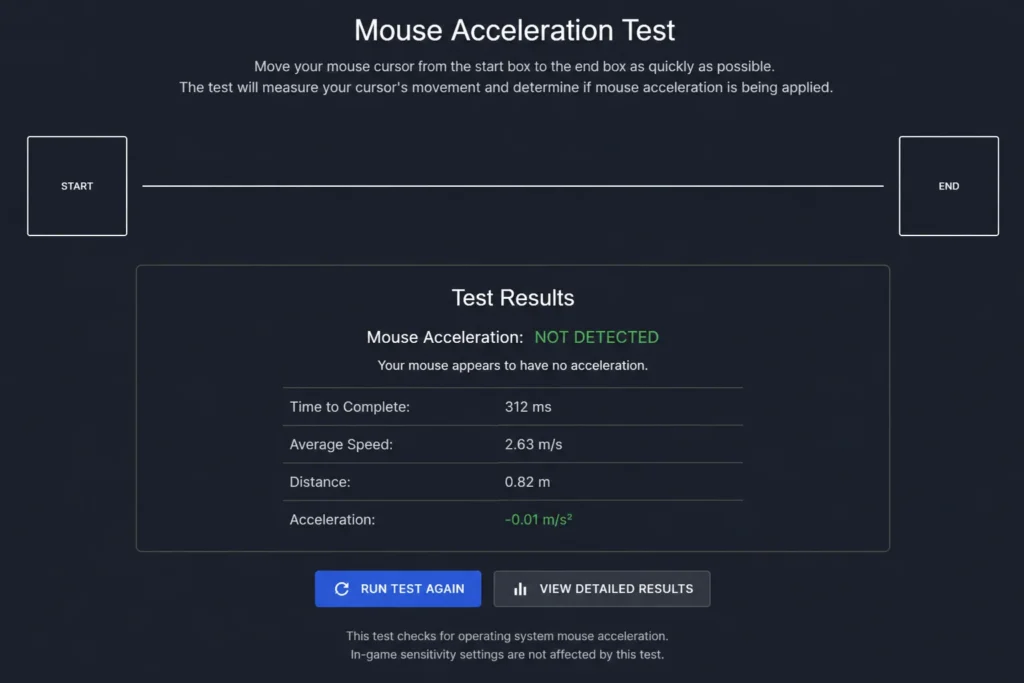
Simple Mouse Acceleration Test – Check Your Gaming Mouse
Run 3 slow swipes and 3 fast swipes using the same physical mousepad distance. The tool compares the average pointer movement to check if mouse acceleration may be active.
Slow trials0 / 3
Fast trials0 / 3
ConfidenceWaiting
Ready to testClick Start Slow Trial. Move your mouse across the same physical distance each time.
Avg Slow Distance0 px
Avg Fast Distance0 px
Difference0%
ResultWaiting
Last trial:None
Slow speed:0 px/s
Fast speed:0 px/s
Tip: Use the same mousepad distance for every trial. Lift the mouse and return to the same starting point before each trial.
Use this mouse acceleration test to check if your mouse movement changes based on speed. Mouse acceleration can make your cursor or aim move farther when you swipe fast, even if your hand moves the same distance on the mousepad.
For daily computer use, mouse acceleration can feel helpful. For FPS gaming, it can make aim harder to control because the same hand movement may not always give the same result. If your flicks feel random, your tracking feels uneven, or your aim feels different from one match to another, mouse acceleration is one of the first settings to check.
Mouse acceleration changes movement based on how fast you move the mouse.
With mouse acceleration off:
A slow 10 cm mouse movement gives one result
A fast 10 cm mouse movement gives the same result
Your aim is based on distance
Your hand movement feels easier to repeat
With mouse acceleration on:
A slow 10 cm mouse movement may move less
A fast 10 cm mouse movement may move more
Your aim is based on distance and speed
Your sensitivity can feel different during fast swipes
This is why many Valorant, CS2, Apex Legends, Fortnite, and Warzone players prefer to turn mouse acceleration off.
How to Test Mouse Acceleration
You can test mouse acceleration with a simple movement check.
Place your mouse at the left edge of your mousepad
Move it slowly to the right edge
Watch where your cursor or crosshair ends
Move the mouse back to the same starting point
Now move it quickly across the same distance
Compare the final position
If the fast movement goes much farther than the slow movement, mouse acceleration may be active.
Why Mouse Acceleration Matters for FPS Gaming
FPS games depend on repeatable aim. Your hand learns how far to move for a flick, spray transfer, tracking correction, or small crosshair adjustment.
Mouse acceleration can affect:
Flick shots
Tracking aim
Spray control
Micro adjustments
Crosshair placement
Muscle memory
Game to game sensitivity matching
If acceleration is active without you knowing, your aim can feel unstable even when your DPI and sensitivity are correct.
Windows Enhance Pointer Precision
On Windows, mouse acceleration is usually connected to a setting called Enhance pointer precision. This setting changes cursor movement based on mouse speed.
For FPS gaming, many players turn this setting off.
To check it on Windows:
Open Windows Settings
Go to Bluetooth and devices
Open Mouse
Choose additional mouse settings
Open the Pointer Options tab
Find Enhance pointer precision
Uncheck it if you want acceleration off
Click Apply
After changing it, test your mouse again. Your movement should feel more direct and easier to repeat.
Does Mouse Acceleration Change DPI?
No. Mouse acceleration does not change your actual DPI number.
DPI controls how sensitive your mouse sensor is. Mouse acceleration changes how movement is handled when you move faster or slower.
That means these settings can stay the same:
Mouse DPI
In game sensitivity
eDPI
cm per 360
But your aim can still feel different if acceleration is active.
If you want to check your base sensitivity, use our eDPI calculator after testing acceleration.
Mouse Acceleration vs Raw Input
Raw input means a game reads mouse movement directly from the mouse. Many competitive games use raw input because it can reduce the effect of Windows pointer settings.
Still, it is smart to keep your full setup clean.
Check these places:
Windows mouse settings
Mouse brand software
Game input settings
DPI profiles
Polling rate settings
Aim trainer settings
Raw input can help, but do not rely on it as your only check. If your aim feels strange, test everything one by one.
Mouse Acceleration in Valorant
Valorant rewards clean crosshair placement and small aim corrections. Most Valorant players prefer no unwanted mouse acceleration.
CS2 needs stable aim for holding angles, counter strafing, spray control, and quick flicks. If your mouse movement changes with speed, your aim can feel harder to trust.
Mouse acceleration can feel like bad aim, but the real issue may be input behavior.
Common signs include:
Your fast flicks go past the target
Your slow movement feels controlled but fast movement feels wild
Your aim feels different after a Windows update
Your mouse feels different in menus and in game
Your cursor speed changes during quick swipes
You cannot build consistent muscle memory
Your sensitivity feels correct one day and strange the next day
How to Turn Off Mouse Acceleration
Use this checklist for a cleaner gaming setup.
Turn off Enhance pointer precision in Windows
Set Windows pointer speed to the middle default position
Open your mouse software
Check for acceleration settings
Turn off angle snapping if you do not want it
Use one DPI profile while testing
Check raw input settings inside your game
Restart the game after changing mouse software settings
Run the mouse acceleration test again
Should You Use Mouse Acceleration?
Most beginners should turn off unwanted acceleration first. A simple setup is easier to learn.
Some advanced players use controlled acceleration with tools such as Raw Accel. This is different from random Windows acceleration because the player chooses the curve and tests it carefully.
Custom acceleration may work if:
You understand your base sensitivity
You want slow precision and faster turning
You are ready to test settings for several days
You play with the same setup every session
You know how to reset your settings if it feels wrong
If you are still learning your aim, keep acceleration off and build a stable baseline first.
Mouse Acceleration and Polling Rate
Mouse acceleration and polling rate are not the same thing.
Mouse acceleration changes movement based on speed
Polling rate controls how often your mouse sends updates
DPI controls sensor sensitivity
In game sensitivity controls aim speed inside the game
If your aim feels delayed, jumpy, or inconsistent, check both acceleration and polling rate. You can also read our guide on why is my mouse jumping around if your mouse skips or shakes.
Mouse Acceleration and Sensitivity Converters
If mouse acceleration is active, sensitivity converters may not feel perfect. The converter assumes your movement is consistent. Acceleration changes that behavior.
Before converting sensitivity between games, check acceleration first.
Then use a mouse sensitivity converter to match your settings across Valorant, CS2, Apex Legends, Fortnite, Overwatch 2, and Warzone.
Quick Gaming Setup Checklist
Choose one DPI value
Turn off unwanted mouse acceleration
Check polling rate
Use raw input when the game supports it
Keep Windows pointer speed at default
Use the same mouse profile every time
Check your eDPI
Test your aim before changing sensitivity again
FAQ
What is a mouse acceleration test?
A mouse acceleration test checks if your cursor or aim moves a different distance when you move the mouse the same physical distance at different speeds.
Is mouse acceleration bad for gaming?
Unwanted mouse acceleration is usually bad for FPS gaming because it makes aim less predictable. Some advanced players use custom acceleration on purpose.
Does Enhance pointer precision mean mouse acceleration?
Yes. In Windows, Enhance pointer precision is the common mouse acceleration setting.
Does mouse acceleration affect eDPI?
It does not change the eDPI number, but it can change how your aim feels because movement depends on speed.
Should I turn off mouse acceleration for Valorant?
Most Valorant players turn it off because Valorant needs precise and repeatable aim.
Should I turn off mouse acceleration for CS2?
Most CS2 players turn it off because stable movement helps with flicks, spray control, and angle holding.
Can raw input ignore Windows mouse acceleration?
In many games, raw input can reduce or bypass Windows pointer processing. Still, it is best to check Windows settings and game settings together.
Why does my aim feel different with the same sensitivity?
Possible reasons include mouse acceleration, polling rate changes, DPI profile changes, raw input behavior, FOV differences, mouse software, or game sensitivity scaling.
Final Words
A mouse acceleration test helps you find out if your mouse movement is consistent. For FPS gaming, consistency is the goal. The same hand movement should create the same aim movement every time.
Turn off unwanted acceleration, check your DPI, test your polling rate, and then tune your eDPI or sensitivity. Once your input is stable, it becomes much easier to build reliable aim across every game.