
Test click response, movement event timing, polling stability, and browser input delay directly on your website.
500Hz vs 1000Hz Mouse: Which Polling Rate Is Better for Gaming?
Click Latency Test
Press start, wait for the test box to turn green, then click as fast as you can. Run several attempts for a better average.
Click start to begin
Last click: Not tested
Average: Not tested
Best: Not tested
Attempts: 0
Movement Polling Test
Move your mouse inside the area for 5 seconds. The tool estimates event interval and polling consistency.
Move mouse here after starting
Estimated polling: Not tested
Average interval: Not tested
Lowest interval: Not tested
Stability: Not tested
Overall Result
Run both tests to see your mouse input latency result.
Important Note
- This browser test gives a practical estimate, not lab grade hardware latency.
- Click results include your human reaction time.
- Movement results depend on your browser, monitor refresh rate, mouse polling rate, and system load.
- For best results, close heavy apps and test wired and wireless modes separately.
500Hz vs 1000Hz mouse polling rate is a common question for gamers who want smoother aim, lower input delay, and better control. The short answer is simple. For most players, 1000Hz is the better default. It updates every 1 millisecond, while 500Hz updates every 2 milliseconds.
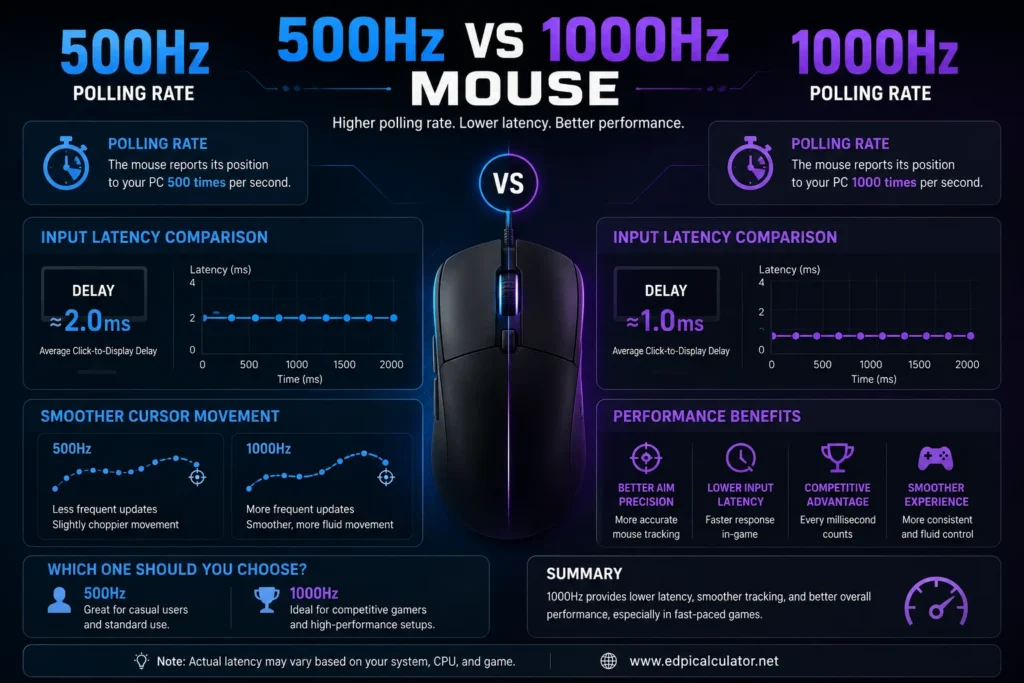
The difference is small, but it can still matter in fast games. A 1000Hz mouse sends position data more often, which can make movement feel slightly smoother and more direct. A 500Hz mouse can still feel good, especially on older systems, weaker CPUs, or games that do not handle higher polling rates well.check out this Mouse Input Latency Test.
What Is Mouse Polling Rate?
Mouse polling rate means how many times per second your mouse reports movement and clicks to your computer. It is measured in Hertz, written as Hz.
If your mouse is set to 500Hz, it sends data 500 times per second. If it is set to 1000Hz, it sends data 1000 times per second.
Simple polling rate chart
- 125Hz reports every 8 milliseconds
- 250Hz reports every 4 milliseconds
- 500Hz reports every 2 milliseconds
- 1000Hz reports every 1 millisecond
- 2000Hz reports every 0.5 milliseconds
- 4000Hz reports every 0.25 milliseconds
- 8000Hz reports every 0.125 milliseconds
The higher the polling rate, the more often your computer receives mouse data.
500Hz vs 1000Hz Mouse: Main Difference
The main difference is update speed.
- 500Hz sends mouse data every 2 ms
- 1000Hz sends mouse data every 1 ms
That means 1000Hz can reduce the maximum mouse report delay by about 1 millisecond compared with 500Hz. In real use, the average difference is closer to half a millisecond.
This is a small number, but competitive players often prefer every bit of consistency they can get.
Is 1000Hz Better Than 500Hz?
Yes, 1000Hz is usually better for gaming. It gives your PC more frequent mouse updates, which can make aim feel cleaner and more responsive.
1000Hz is better if:
- You play FPS games
- You use a 144Hz, 240Hz, or higher refresh monitor
- You want lower input delay
- Your PC handles it without stutter
- Your mouse supports stable 1000Hz
- You play Valorant, CS2, Apex, Fortnite, Overwatch, or Call of Duty
For most modern gaming mice and PCs, 1000Hz is the best default setting.
Is 500Hz Still Good?
Yes, 500Hz is still good. It reports every 2 milliseconds, which is fast enough for many players. Some people even prefer 500Hz because it can feel slightly steadier on certain systems.
500Hz can be better if:
- Your game stutters at 1000Hz
- Your PC is older or weaker
- Your mouse has unstable 1000Hz polling
- You want longer wireless battery life
- You cannot feel a difference between 500Hz and 1000Hz
- You play casual games more than competitive shooters
If 1000Hz causes frame drops or weird mouse movement, use 500Hz. Stable input is more important than a higher number.
500Hz vs 1000Hz for FPS Games
FPS games benefit the most from higher polling rate because aim depends on fast mouse updates. Flick shots, tracking, recoil control, and target switching all feel better when input is stable.
For FPS games, 1000Hz helps with:
- Smoother crosshair movement
- Lower input delay
- Cleaner flick shots
- More consistent tracking
- Better recoil control
- Faster click response timing
Games like Valorant, CS2, Apex Legends, Overwatch 2, and Fortnite are good examples where 1000Hz makes sense.
500Hz vs 1000Hz for Valorant
Valorant is a precision shooter, so stable mouse input matters. Most Valorant players should use 1000Hz if their mouse and PC support it properly.
Best choice for Valorant
- Use 1000Hz for competitive play
- Use 500Hz only if 1000Hz feels unstable
- Keep raw input buffer enabled if it works well on your system
- Use a stable FPS cap if your game stutters
For Valorant, 1000Hz is the safer competitive choice.
500Hz vs 1000Hz for CS2
CS2 players usually prefer 1000Hz because the game rewards fast and precise mouse input. Small improvements in consistency can help with counter strafing, crosshair placement, and flick timing.
Best choice for CS2
- Use 1000Hz on modern systems
- Use 500Hz if 1000Hz creates stutter
- Keep mouse acceleration off
- Use raw input behavior through the game engine
If your mouse feels smooth at 1000Hz, keep it there.
500Hz vs 1000Hz for Apex Legends
Apex Legends has fast tracking, recoil control, movement, and long fights. A stable 1000Hz polling rate can help your tracking feel more connected.
Best choice for Apex
- Use 1000Hz for smoother tracking
- Use 500Hz if you notice FPS drops or stutters
- Test in the Firing Range before ranked games
- Keep your sensitivity and DPI unchanged when testing polling rate
Apex players should test both, but most will be fine with 1000Hz.
Does 1000Hz Improve Aim?
1000Hz will not magically improve your aim. It only gives your computer mouse updates more often. Your aim still depends on practice, sensitivity, crosshair placement, reaction time, and comfort.
That said, 1000Hz can make aiming feel slightly more direct. For skilled players, that tiny improvement may feel worthwhile.
1000Hz may help aim feel:
- More responsive
- Less floaty
- More consistent
- Smoother during tracking
- Cleaner during fast flicks
Can You Feel the Difference Between 500Hz and 1000Hz?
Some players can feel the difference. Some cannot. The timing gap is very small, so it depends on your sensitivity, monitor refresh rate, game, frame rate, and personal feel.
You are more likely to notice the difference if:
- You use a high refresh rate monitor
- You play competitive FPS games
- You have stable high FPS
- You use a good gaming mouse
- You move the mouse quickly
- You are sensitive to input delay
You may not notice it if:
- You use a 60Hz monitor
- Your FPS is low or unstable
- You play casual games
- Your mouse sensor is not very good
- Your system has other input lag problems
500Hz vs 1000Hz on 60Hz Monitor
On a 60Hz monitor, the difference between 500Hz and 1000Hz is harder to feel because the screen refreshes only 60 times per second. Your mouse can send data faster than the monitor can display frames.
Still, 1000Hz can be useful because the game engine and operating system receive more frequent input data.
Best choice for 60Hz
- Use 1000Hz if it is stable
- Use 500Hz if you cannot feel a difference
- Upgrade monitor refresh rate before chasing tiny polling rate gains
500Hz vs 1000Hz on 144Hz Monitor
On a 144Hz monitor, 1000Hz makes more sense. A 144Hz screen refreshes about every 6.94 milliseconds, so frequent mouse updates can help the game receive fresher input before each frame.
Best choice for 144Hz
- 1000Hz is recommended
- 500Hz is still playable
- Use whichever feels more stable
500Hz vs 1000Hz on 240Hz Monitor
On a 240Hz monitor, 1000Hz is the better choice for most competitive players. A 240Hz screen refreshes about every 4.17 milliseconds, so faster mouse reporting lines up better with high frame rates.
Best choice for 240Hz
- Use 1000Hz as your default
- Test 500Hz only if 1000Hz causes issues
- Keep FPS stable for best results
Does 1000Hz Use More CPU?
1000Hz can use slightly more CPU than 500Hz because your PC receives twice as many mouse reports. On modern systems, this is usually not a problem.
On older PCs, weak laptops, or poorly optimized games, high polling rate can sometimes cause stutters. This is more common with 4000Hz and 8000Hz, but it can still happen with some systems at 1000Hz.
If 1000Hz causes problems:
- Try 500Hz
- Close background apps
- Use another USB port
- Update mouse software
- Update game and GPU drivers
- Check if the issue happens only in one game
500Hz vs 1000Hz for Wireless Mouse
Modern wireless gaming mice can handle 1000Hz very well. Many feel just as fast as wired mice when the receiver is close and the battery is healthy.
However, 500Hz can save battery on some wireless mice.
Use 1000Hz wireless if:
- You play competitive games
- Your battery life is still good
- The receiver is close to the mouse
- Your connection is stable
Use 500Hz wireless if:
- You want longer battery life
- You play casual games
- You notice stutters at 1000Hz
- Your mouse software recommends it for power saving
500Hz vs 1000Hz for Office Work
For office work, browsing, writing, and normal computer use, 500Hz is already more than enough. You do not need 1000Hz to use spreadsheets, email, or web pages.
Best choice for office use
- 500Hz is smooth enough
- 1000Hz is fine if battery life does not matter
- Wireless users may prefer 500Hz for longer use
Should You Use 500Hz or 1000Hz?
For most gamers, use 1000Hz. It has lower report delay, smoother input, and wide support across modern gaming mice.
For casual use, older systems, or battery saving, 500Hz is still a good choice.
Quick recommendation
- Competitive FPS: 1000Hz
- Casual gaming: 500Hz or 1000Hz
- Older PC: 500Hz
- Wireless battery saving: 500Hz
- High refresh monitor: 1000Hz
- Stuttering at 1000Hz: 500Hz
- Office work: 500Hz
How to Change Mouse Polling Rate
Most gaming mice let you change polling rate in their software. Some mice also use a button combination or onboard memory setting.
Common mouse software
- Logitech G HUB
- Razer Synapse
- SteelSeries GG
- Corsair iCUE
- Glorious Core
- HyperX NGENUITY
- ROCCAT Swarm
Basic steps
- Open your mouse software
- Select your mouse
- Find performance or polling rate settings
- Choose 500Hz or 1000Hz
- Save the profile
- Test the mouse in your main game
How to Test Your Mouse Polling Rate
You can use an online mouse polling rate test to check if your mouse is really running at 500Hz or 1000Hz.
Testing tips
- Move the mouse in fast circles during the test
- Do not move too slowly or results may look lower
- Close heavy apps before testing
- Test each polling rate more than once
- Use the same USB port for fair comparison
Polling rate tests can fluctuate. That is normal. Look for the average range, not one perfect number.
Why Your Polling Rate Looks Lower Than Expected
If your 1000Hz mouse shows 700Hz or 850Hz in a test, it does not always mean the mouse is broken. Online tests depend on browser behavior, mouse movement speed, system load, and how often events are captured.
Possible reasons
- You are moving the mouse too slowly
- The browser is limiting event capture
- Your CPU is busy
- Your mouse software did not save the setting
- You are using a bad USB hub
- Wireless signal is weak
- The mouse lowers polling rate during low movement
500Hz vs 1000Hz Pros and Cons
500Hz pros
- Stable on many systems
- Lower CPU usage than 1000Hz
- Can save wireless battery
- Still fast enough for many players
- Good for office and casual use
500Hz cons
- Higher report interval than 1000Hz
- Slightly less responsive
- May feel less smooth in FPS games
- Less ideal for high refresh monitors
1000Hz pros
- Lower report interval
- Better default for gaming
- Smoother mouse updates
- Better for high refresh monitors
- Widely supported by gaming mice
1000Hz cons
- Slightly more CPU activity
- Can reduce wireless battery life
- May cause stutters on weak systems
- Difference from 500Hz is small for casual users
Common Myths About 500Hz and 1000Hz
Myth: 1000Hz will instantly make you aim better
1000Hz can make input feel smoother, but it will not replace practice, good sensitivity, crosshair placement, and recoil control.
Myth: 500Hz is bad
500Hz is not bad. It is still responsive and works well for many players.
Myth: Higher polling rate is always better
Higher polling rate is better only if your mouse, PC, and game handle it smoothly. Stable 500Hz is better than unstable 1000Hz.
Myth: You need 8000Hz to play competitively
You do not need 8000Hz. 1000Hz is already strong for most competitive players.
FAQs
Is 500Hz or 1000Hz better for gaming?
1000Hz is better for most gaming setups because it reports every 1 millisecond instead of every 2 milliseconds.
Is 500Hz polling rate good?
Yes. 500Hz is still good and can feel stable. It is fine for casual gaming, office work, and older systems.
Does 1000Hz reduce input lag?
Yes. 1000Hz lowers mouse report delay compared with 500Hz. The difference is small, but it can improve responsiveness.
Can 1000Hz cause stutter?
Yes, on some older systems or poorly optimized games. If that happens, switch back to 500Hz.
Does 1000Hz use more battery?
Yes, wireless mice may use more battery at 1000Hz than 500Hz because they send data more often.
Can I feel the difference between 500Hz and 1000Hz?
Some players can feel it, especially on high refresh monitors. Others may not notice much difference.
What polling rate do pro gamers use?
Most pro players use 1000Hz or higher if their mouse supports it and their system stays stable.
Is 1000Hz enough for competitive gaming?
Yes. 1000Hz is enough for almost all competitive players.
Should I use 500Hz on a low end PC?
Yes, if 1000Hz causes stutters or frame drops. A stable setting is better than a higher number.
What is the best polling rate for FPS games?
1000Hz is the best default for FPS games. Use 500Hz only if it feels smoother on your system.
Useful External References
For a practical comparison of 500Hz and 1000Hz, read Ultimate PC Tools on 1000Hz vs 500Hz polling rate. It explains the timing gap and why 1000Hz is the usual gaming default.
For community opinions, check FPS Aim Trainer Reddit discussion on 500Hz vs 1000Hz. Player feedback is useful because polling rate can feel different depending on the system and game.
Final Verdict
Choose 1000Hz if you play competitive games, use a high refresh monitor, and your PC runs smoothly. It gives lower report delay and more frequent mouse updates.
Choose 500Hz if you want better battery life, use an older system, or notice stutter at 1000Hz.
For most players, the best answer is simple. Use 1000Hz first. If it feels stable, keep it. If it causes problems, switch to 500Hz and enjoy the steadier feel.