
Test click response, movement event timing, polling stability, and browser input delay directly on your website.
Mouse Input Latency Test
Click Latency Test
Press start, wait for the test box to turn green, then click as fast as you can. Run several attempts for a better average.
Click start to begin
Last click: Not tested
Average: Not tested
Best: Not tested
Attempts: 0
Movement Polling Test
Move your mouse inside the area for 5 seconds. The tool estimates event interval and polling consistency.
Move mouse here after starting
Estimated polling: Not tested
Average interval: Not tested
Lowest interval: Not tested
Stability: Not tested
Overall Result
Run both tests to see your mouse input latency result.
Important Note
- This browser test gives a practical estimate, not lab grade hardware latency.
- Click results include your human reaction time.
- Movement results depend on your browser, monitor refresh rate, mouse polling rate, and system load.
- For best results, close heavy apps and test wired and wireless modes separately.
A mouse input latency test helps you check how quickly your mouse movement or click is registered by your computer, browser, game, or screen. If your aim feels delayed, your cursor feels heavy, or your clicks feel late, mouse input latency may be part of the problem.
Mouse latency matters most in FPS games, aim trainers, editing software, design tools, and any task where fast pointer response is important. A small delay can make your mouse feel floaty, slow, or disconnected from your hand.
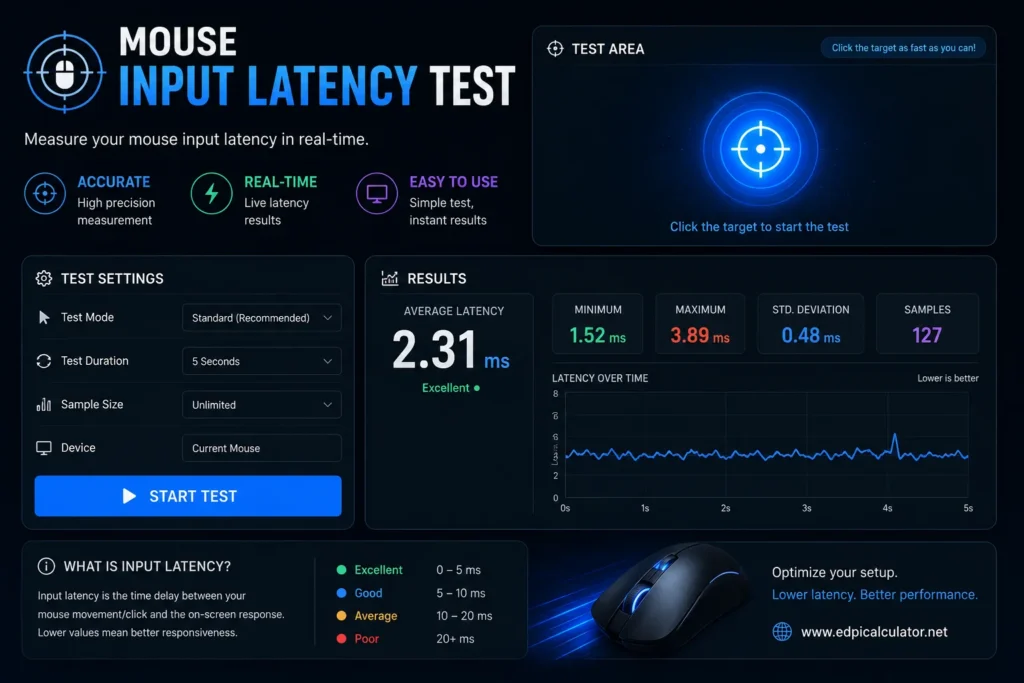
What Is Mouse Input Latency?
Mouse input latency is the delay between your physical mouse action and the response you see on screen.
That action can be:
- Moving the mouse
- Clicking the left button
- Clicking the right button
- Dragging the cursor
- Scrolling the wheel
- Tracking an enemy in game
Lower latency means your mouse feels more direct. Higher latency means your movement feels delayed, heavy, or slippery. click this for more Simple Mouse Acceleration Test – Check Your Gaming Mouse
What Is a Mouse Input Latency Test?
A mouse input latency test is a tool that checks how responsive your mouse feels. Some tests measure click delay. Some measure polling rate. Some estimate full system latency from mouse input to visible screen response.
A good test can help you find problems such as:
- Slow mouse clicks
- Unstable polling rate
- Wireless delay
- USB port issues
- Browser input delay
- Game input lag
- Display response delay
- Mouse jitter or skipping
Why Mouse Latency Matters
In competitive games, mouse latency can affect reaction time, tracking, flick shots, recoil control, and click timing. In normal computer use, it can make the cursor feel slow or inaccurate.
Low mouse latency helps with:
- Faster reaction in FPS games
- Cleaner flick shots
- Smoother tracking aim
- More accurate clicking
- Better recoil control
- Less floaty cursor movement
- More consistent hand to screen response
Types of Mouse Latency
Mouse latency is not one single thing. It is made of several small delays that add up.
Click latency
Click latency is the delay between pressing a mouse button and the click being registered by the system. This depends on the mouse switch, firmware, debounce settings, connection type, and USB report timing.
Movement latency
Movement latency is the delay between moving the mouse and seeing the cursor or crosshair move. This depends on the sensor, polling rate, USB connection, operating system, game engine, frame rate, and display.
System latency
System latency includes the full path from mouse input to visible screen response. This includes the mouse, USB processing, game engine, graphics pipeline, monitor refresh, and display response.
How Mouse Input Latency Works
When you move or click your mouse, the mouse sends data to your computer. The computer reads that data, processes it, sends it through the app or game, renders the new frame, then your monitor displays it.
The full input chain usually includes:
- Mouse sensor or switch
- Mouse firmware
- Polling rate
- USB or wireless connection
- Operating system input handling
- Game or browser processing
- Graphics rendering
- Monitor refresh rate
- Display response time
This is why a mouse can be fast, but the full system can still feel delayed.
Mouse Polling Rate and Latency
Polling rate tells you how often your mouse reports its position to the computer.
Common polling rates
- 125 Hz sends a report about every 8 milliseconds
- 500 Hz sends a report about every 2 milliseconds
- 1000 Hz sends a report about every 1 millisecond
- 2000 Hz sends a report about every 0.5 milliseconds
- 4000 Hz sends a report about every 0.25 milliseconds
- 8000 Hz sends a report about every 0.125 milliseconds
A higher polling rate can make movement feel smoother and more responsive, but it also depends on your mouse, CPU, game, and monitor. For most players, 1000 Hz is still a safe and reliable setting.
Best Polling Rate for Gaming
The best polling rate depends on your setup.
- 125 Hz is too low for most gaming setups
- 500 Hz can feel fine, but 1000 Hz is usually better
- 1000 Hz is the best default for most players
- 2000 Hz and 4000 Hz can feel smoother on high refresh monitors
- 8000 Hz is useful only if your system and game handle it well
If your game stutters or your CPU usage rises after enabling 4000 Hz or 8000 Hz, return to 1000 Hz.
How to Run a Mouse Input Latency Test
Use a simple process so your results are easier to trust.
Before testing
- Close heavy apps
- Use a stable USB port
- Disable mouse acceleration
- Set your polling rate
- Use your normal DPI
- Use your normal monitor refresh rate
- Test wired and wireless separately if possible
During testing
- Move the mouse in smooth circles
- Click at a steady pace
- Watch for polling rate drops
- Check if clicks register late
- Repeat the test several times
- Compare results after changing one setting
After testing
- Look for average latency
- Look for inconsistent spikes
- Check if polling rate is stable
- Compare wired vs wireless results
- Test another USB port if results look strange
Good Mouse Latency Results
Mouse latency numbers depend on the test method, but lower and more stable is better.
General guide
- Under 2 ms click latency is excellent for gaming mice
- 2 to 5 ms is still very good
- 5 to 10 ms is acceptable for casual use
- Over 10 ms may feel slow in competitive games
- Large spikes are worse than a slightly higher stable average
For movement, focus on consistency. A mouse that jumps between smooth and delayed will feel worse than one with a stable response.
Why Your Mouse Feels Delayed
If your mouse feels slow, the mouse itself may not be the only cause. Input delay can come from many places.
Common causes of mouse input lag
- Low polling rate
- Bad USB hub
- Weak wireless signal
- Low battery
- Mouse acceleration
- V Sync enabled
- Low frame rate
- High GPU usage
- Game running in borderless mode
- Monitor not using game mode
- Wrong refresh rate setting
- Old mouse firmware
- Background apps using CPU
How to Reduce Mouse Input Latency
You can lower mouse input delay by cleaning up the full input chain.
Mouse settings
- Use 1000 Hz polling rate as a starting point
- Update mouse firmware
- Use a direct USB port
- Avoid cheap USB hubs
- Keep wireless receiver close to the mouse
- Charge the mouse battery
- Turn off angle snapping if your mouse software has it
Windows settings
- Turn off Enhance Pointer Precision
- Use default pointer speed
- Set your monitor to its highest refresh rate
- Close overlays you do not need
- Keep GPU drivers updated
Game settings
- Use fullscreen mode when possible
- Disable V Sync if latency matters
- Keep frame rate stable
- Use NVIDIA Reflex or similar low latency mode if supported
- Lower graphics settings if GPU usage is maxed out
- Use raw input if the game supports it
Wired vs Wireless Mouse Latency
Modern wireless gaming mice can be extremely fast. A good wireless gaming mouse can feel just as responsive as wired for most players.
Wireless latency problems usually come from setup issues, not wireless itself.
For better wireless performance
- Place the receiver close to the mousepad
- Avoid plugging the receiver behind the PC case
- Keep battery level healthy
- Avoid crowded USB ports
- Use the included receiver extender if available
- Keep the mouse firmware updated
Mouse Click Latency vs Human Reaction Time
Mouse click latency is usually much smaller than human reaction time. A good gaming mouse may register clicks in only a few milliseconds, while human visual reaction time is often much higher.
That does not mean mouse latency is useless. In fast games, small delays add up with display lag, game latency, network delay, and reaction time.
What matters most
- Stable click response
- Low movement delay
- Consistent frame rate
- High refresh monitor
- Low display lag
- Good network connection
Browser Mouse Latency Tests
Online mouse latency tests are useful, but they have limits. A browser test can show click timing, polling behavior, and rough input delay, but it cannot always measure the exact hardware latency of your mouse.
Browser tests are good for:
- Quick mouse checks
- Comparing polling rate settings
- Finding big input delay problems
- Checking click registration
- Testing movement consistency
Browser tests are not perfect for:
- Exact lab grade click latency
- Separating mouse delay from display delay
- Measuring game engine latency
- Testing every wireless condition
For precise lab results, reviewers often use specialized hardware and repeatable mechanical tests.
Best Way to Test Mouse Input Lag in Games
If your mouse feels fine on desktop but bad in games, test inside the game itself.
Use this checklist
- Check if raw input is enabled
- Turn off V Sync
- Use fullscreen mode
- Lower graphics settings
- Cap FPS slightly below your maximum stable frame rate
- Enable low latency mode if supported
- Check if your monitor is at the right refresh rate
- Try another USB port
- Compare wired and wireless mode
Signs of High Mouse Input Latency
- Your cursor feels floaty
- Your crosshair trails behind your hand
- Flick shots feel late
- Tracking feels disconnected
- Clicks register after you expect them
- Aim feels worse when FPS drops
- Mouse feels fine on desktop but bad in game
- Wireless mode feels worse than wired
Common Mouse Input Latency Mistakes
- Testing once and trusting one result
- Changing many settings at the same time
- Using a bad USB hub
- Forgetting monitor refresh rate
- Leaving V Sync on in competitive games
- Using high polling rate on a weak system
- Ignoring frame rate stability
- Blaming the mouse when the display is the issue
Mouse Input Latency Test for FPS Games
FPS players should care about both click latency and movement latency. Click latency affects shooting timing. Movement latency affects tracking, flicks, recoil control, and target switching.
Important FPS settings
- 1000 Hz polling rate or higher if stable
- Raw input enabled
- Mouse acceleration off
- Stable FPS
- Low latency mode enabled when useful
- Fullscreen mode
- High refresh monitor
- Game mode enabled on TV or monitor if available
Mouse Input Latency Test for Designers and Editors
Mouse latency is not only for gamers. Designers, editors, and productivity users also notice delay when doing precise work.
Low latency helps with:
- Pixel level editing
- Dragging timeline clips
- Drawing masks
- Selecting small UI elements
- Using large monitors
- Working with high DPI mice
FAQs About Mouse Input Latency Test
What is a mouse input latency test?
A mouse input latency test checks how quickly your mouse movement or click is registered and shown on screen.
What is good mouse latency?
For gaming mice, click latency under 5 ms is very good. Under 2 ms is excellent. For full system latency, lower and more stable is always better.
Does polling rate reduce input lag?
Yes, higher polling rate can reduce the time between mouse reports. 1000 Hz reports about every 1 ms, while 125 Hz reports about every 8 ms.
Is 1000 Hz polling rate enough?
Yes. 1000 Hz is still a strong default for most players. Higher rates can help on fast systems, but they are not always necessary.
Can wireless mice have low latency?
Yes. Modern wireless gaming mice can have very low latency when the receiver is close, battery is healthy, and firmware is updated.
Why does my mouse feel delayed in games?
The cause may be V Sync, low FPS, high GPU usage, borderless mode, monitor lag, USB issues, or game engine delay.
Does DPI affect mouse latency?
DPI can affect movement feel and input granularity, but it is not the same as click latency. Higher DPI can sometimes make movement feel more immediate when sensitivity is adjusted properly.
How do I test mouse click latency?
Use an online click latency test for a rough check. For exact hardware numbers, lab testing with dedicated equipment is more reliable.
How do I reduce mouse input lag?
Use a stable polling rate, direct USB port, raw input, fullscreen mode, high refresh rate, low latency game settings, and updated firmware.
Can my monitor cause mouse input lag?
Yes. Display lag and refresh rate affect when you see the result of your mouse movement. A slow display can make a fast mouse feel delayed.
Useful External References
For a quick online mouse test, visit MouseTester. It is useful for checking mouse buttons, movement behavior, polling rate, and basic input response in the browser.
For lab style mouse click latency information, read RTINGS mouse click latency testing. Their testing explains why connection type and click behavior matter when comparing mice.
For broader system delay, try the FPSTest input lag test. It explains how total latency includes mouse input, processing, rendering, and display response.
For display side latency, the Display Lag Wikipedia page gives a simple explanation of how monitor delay contributes to total input lag.
Final Thoughts
A mouse input latency test is useful when your mouse feels slow, floaty, or inconsistent. It helps you check polling rate, click response, movement delay, and possible setup problems.
Start with simple fixes first. Use 1000 Hz polling rate, plug the mouse directly into your PC, turn off mouse acceleration, update firmware, use raw input, disable V Sync in competitive games, and make sure your monitor is running at its highest refresh rate.
The best mouse setup is not only about the lowest number. It should feel stable, predictable, and connected to your hand. Low latency is good, but consistent latency is what makes aim and cursor control feel clean.