
Calculate Aim Lab eDPI, cm/360, inches/360, polling interval, and matching sensitivity for a new DPI.
Aim Lab eDPI Calculator: Best DPI, Sensitivity & Aim Training Settings
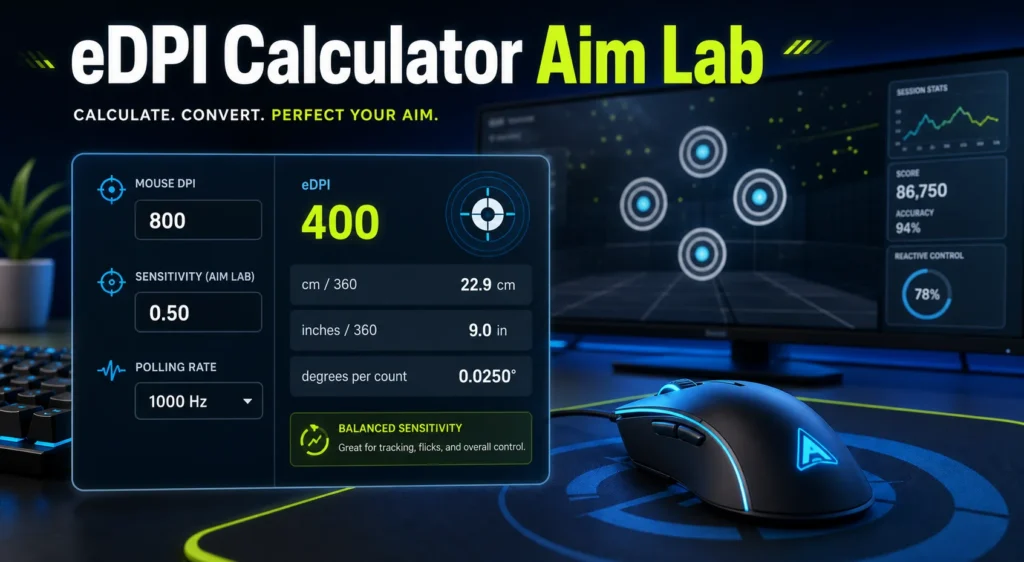
Your Aim Lab eDPI
400
Balanced
cm/360: 22.9 cm
inches/360: 9.0 in
Matching Sensitivity: 0.250 at 1600 DPI
Target Sensitivity: 0.500 for 400 eDPI
Polling Interval: 1.00 ms
Degrees Per Count: 0.0250
Profile: Aim Lab Default
Training Goal: Balanced
Recommendation
Your eDPI is in a balanced range for Aim Lab training. Keep this setting if flicks and tracking both feel comfortable.
How This Calculator Works
- eDPI equals mouse DPI multiplied by Aim Lab sensitivity.
- cm/360 estimates physical mouse movement for a full 360 degree turn.
- Use the profile that matches your main FPS game when practicing.
- Polling rate does not change eDPI, but it can change how movement feels.
An eDPI calculator for Aim Lab helps you understand your real mouse sensitivity by combining your mouse DPI with your Aim Lab sensitivity. It is useful when you want your aim trainer to feel closer to Valorant, CS2, Apex Legends, Fortnite, Overwatch 2, Rainbow Six Siege, or another FPS game.
Aim Lab is built for aim practice, so sensitivity consistency matters. If your training sensitivity does not match your main game, your tracking, flicks, micro corrections, and muscle memory can feel different. That is why players use eDPI, cm/360, sensitivity converters, and polling rate checks before starting serious practice.
One common question is: does polling rate affect sensitivity? The short answer is no. Polling rate does not directly change eDPI or cm/360. But it can change how your sensitivity feels because it affects how often your mouse sends movement data to your PC. check for more info How to Import Valorant Settings to Aimlabs
What Is Aim Lab eDPI?
eDPI means effective DPI. It combines your mouse DPI and your Aim Lab sensitivity into one number.
eDPI = Mouse DPI × Aim Lab Sensitivity
Example:
- 400 DPI × 1.0 sensitivity = 400 eDPI
- 800 DPI × 0.5 sensitivity = 400 eDPI
- 1600 DPI × 0.25 sensitivity = 400 eDPI
All three settings have the same eDPI. The overall turn speed should be similar if the same sensitivity profile and game conversion are being used.
What Is an Aim Lab eDPI Calculator?
An Aim Lab eDPI calculator is a simple tool that multiplies your DPI by your Aim Lab sensitivity. More advanced tools also show cm/360, inches/360, matching sensitivity for a new DPI, and conversion values for different game profiles.
A good Aim Lab calculator should include:
- Mouse DPI
- Aim Lab sensitivity
- Game profile or sensitivity type
- eDPI result
- cm/360 result
- inches/360 result
- matching sensitivity at another DPI
- polling rate note
- aim style recommendation
This makes it easier to train with a consistent aim feel instead of guessing between different games.
Why eDPI Matters in Aim Lab
Aim Lab is often used to build mouse control. If your sensitivity is too different from your main game, your training can feel disconnected.
eDPI matters because it affects:
- Flick distance
- Tracking smoothness
- Target switching
- Micro corrections
- Strafe tracking
- Click timing
- Comfort during long practice sessions
The goal is not always to copy one perfect eDPI. The goal is to understand your setting so you can train with purpose.
Aim Lab Sensitivity Profiles
Aim Lab supports many game profiles and sensitivity systems. Search results show tools listing Aim Lab alongside Valorant, CS2, Fortnite, Overwatch 2, Apex Legends, Rainbow Six Siege, PUBG, Rust, Minecraft, Roblox, Marvel Rivals, ARC Raiders, and more.
This matters because the same sensitivity number can mean different things depending on the selected profile.
Before calculating eDPI, check:
- Which game profile is selected in Aim Lab
- Your mouse DPI
- Your Aim Lab sensitivity value
- Your FOV setting
- Your ADS or scoped sensitivity if used
- Your main game sensitivity
If you train for Valorant, use the Valorant profile. If you train for CS2, use the CS2 profile. Do not assume one sensitivity number means the same thing across every profile.
Aim Lab eDPI Formula
The basic formula is:
Aim Lab eDPI = Mouse DPI × Aim Lab Sensitivity
Example calculation
- Mouse DPI: 800
- Aim Lab sensitivity: 0.5
800 × 0.5 = 400 eDPI
Your Aim Lab eDPI is 400.
What Is cm/360 in Aim Lab?
cm/360 means how many centimeters you move your mouse to turn 360 degrees in game. It is often more useful than eDPI when comparing different games because each game can use a different sensitivity scale.
cm/360 helps compare:
- Aim Lab to Valorant
- Aim Lab to CS2
- Aim Lab to Apex Legends
- Aim Lab to Overwatch 2
- Aim Lab to Fortnite
- Aim Lab to Rainbow Six Siege
For same game comparison, eDPI is useful. For cross game conversion, cm/360 is usually better.
Good eDPI for Aim Lab
There is no single best eDPI for Aim Lab. Your ideal value depends on your main game, mousepad size, hand movement style, FOV, and task type.
General eDPI ranges for FPS aim training:
- Low sensitivity: under 300 eDPI in Valorant style scaling
- Balanced sensitivity: 300 to 600 eDPI in Valorant style scaling
- Fast sensitivity: 600 to 1000 eDPI in Valorant style scaling
- Very fast sensitivity: above 1000 eDPI in Valorant style scaling
These ranges do not apply equally to every game profile. CS2, Apex, Overwatch, and Fortnite use different sensitivity scales, so always check the profile and cm/360.
Should Aim Lab Sensitivity Match Your Main Game?
If your goal is to train for one main FPS game, your Aim Lab sensitivity should usually match that game as closely as possible.
Match your main game if:
- You are training for ranked performance
- You want consistent muscle memory
- You practice flicks and tracking for one game
- You use Aim Lab before playing matches
- You want your warmup to feel natural
You can use a different sensitivity if:
- You are doing mouse control drills
- You are testing new sensitivity ranges
- You are practicing speed or precision separately
- You are using Aim Lab’s sensitivity finder
- You want a training challenge rather than a perfect match
Aim Lab Sensitivity for Valorant
Valorant players often use Aim Lab to train flicks, micro corrections, and target switching. For best consistency, select the Valorant sensitivity profile in Aim Lab and enter your Valorant sensitivity.
Example Valorant style setup:
- Mouse DPI: 800
- Valorant sensitivity: 0.35
- eDPI: 280
This is a common style of low to balanced tactical shooter sensitivity.
Aim Lab Sensitivity for CS2
CS2 players often care about cm/360 because the sensitivity scale is different from Valorant. If you want CS2 practice to feel correct, select the CS2 profile in Aim Lab or use a sensitivity converter.
Example CS2 style setup:
- Mouse DPI: 800
- CS2 sensitivity: 1.0
- eDPI: 800
Do not compare CS2 eDPI directly with Valorant eDPI. They are not the same sensitivity scale.
Aim Lab Sensitivity for Apex Legends
Apex Legends needs more tracking and movement than tactical shooters. Many Apex players train tracking tasks in Aim Lab and use cm/360 to keep their sensitivity close.
Example Apex style setup:
- Mouse DPI: 800
- Apex sensitivity: 1.5
- eDPI: 1200
This can feel much faster than a typical Valorant setting, but that is normal because Apex has faster fights and longer tracking duels.
Does Polling Rate Affect Sensitivity in Aim Lab?
Polling rate does not directly change sensitivity in Aim Lab. Your eDPI stays the same if your DPI and Aim Lab sensitivity stay the same.
Polling rate controls how often your mouse reports movement to your PC.
Common polling rates:
- 125Hz reports every 8 milliseconds
- 250Hz reports every 4 milliseconds
- 500Hz reports every 2 milliseconds
- 1000Hz reports every 1 millisecond
- 2000Hz reports every 0.5 milliseconds
- 4000Hz reports every 0.25 milliseconds
- 8000Hz reports every 0.125 milliseconds
If you use 800 DPI and 0.5 sensitivity, your eDPI is still 400 whether your mouse is set to 500Hz, 1000Hz, 4000Hz, or 8000Hz.
Why Polling Rate Can Feel Like It Changes Sensitivity
Polling rate can change how your sensitivity feels because it changes input timing. Higher polling rate can make movement feel sharper and more responsive. Lower polling rate can feel heavier or more delayed.
Polling rate can affect feel through:
- input delay
- motion smoothness
- frame time stability
- CPU load
- mouse firmware
- wireless receiver stability
- Aim Lab performance
- monitor refresh rate
This is why a player may switch from 500Hz to 1000Hz and feel like sensitivity became faster, even though the actual cm/360 stayed the same.
500Hz vs 1000Hz for Aim Lab
For most players, 1000Hz is the best default for Aim Lab. It gives fast reporting without being too demanding for modern systems.
Use 1000Hz if:
- Your PC runs Aim Lab smoothly
- You play competitive FPS games
- You use a modern gaming mouse
- You play on 144Hz, 240Hz, or higher
- You want cleaner tracking and flick timing
Use 500Hz if:
- 1000Hz causes stutter
- Your PC is older
- Your wireless mouse battery drains too quickly
- You cannot feel a difference
- You want stable input over lower report delay
Stable 500Hz is better than unstable 1000Hz.
Does 4000Hz or 8000Hz Help in Aim Lab?
High polling rates can feel smoother on strong systems, but Aim Lab may not always benefit from 4000Hz or 8000Hz. Some community reports mention performance drops or stutter with very high polling rates in aim trainers. This can happen because high polling rates create many more input events for the PC and game to process.
Use 4000Hz or 8000Hz only if:
- Your CPU is strong
- Aim Lab stays smooth
- Your mouse supports it cleanly
- Your monitor refresh rate is high
- You can feel a clear improvement
Lower polling rate if:
- Aim Lab stutters
- FPS drops while moving the mouse
- Tracking feels inconsistent
- Mouse movement feels slower or strange
- Wireless battery life becomes poor
If 4000Hz or 8000Hz causes problems, return to 1000Hz or 500Hz.
Should You Change Sensitivity After Changing Polling Rate?
No, not immediately. If you change polling rate, keep your DPI and Aim Lab sensitivity the same first. Then test whether your actual turn distance changed.
Clean test method:
- Write down your DPI.
- Write down your Aim Lab sensitivity.
- Set polling rate to 1000Hz.
- Measure your cm/360.
- Switch polling rate to 500Hz.
- Measure cm/360 again.
- Compare the distance.
If the distance is the same, your sensitivity did not change. Only the input feel changed.
Polling Rate vs DPI in Aim Lab
DPI and polling rate are different settings.
DPI controls movement amount
- Higher DPI sends more counts per inch
- Lower DPI sends fewer counts per inch
- DPI changes eDPI if sensitivity stays the same
Polling rate controls input timing
- Higher polling sends reports more often
- Lower polling sends reports less often
- Polling rate does not appear in the eDPI formula
For Aim Lab, choose sensitivity first. Then test polling rate for smoothness.
High DPI Low Sens vs Low DPI High Sens in Aim Lab
Many players prefer higher DPI with lower sensitivity because it can make tiny movements feel smoother.
Same eDPI example:
- 400 DPI × 1.0 sensitivity = 400 eDPI
- 800 DPI × 0.5 sensitivity = 400 eDPI
- 1600 DPI × 0.25 sensitivity = 400 eDPI
The eDPI is the same, but 800 or 1600 DPI may feel smoother because the mouse sends more counts per inch.
Best Aim Lab Mouse Settings
These settings are a safe starting point for most players.
- DPI: 800 or 1600
- Polling rate: 1000Hz
- Mouse acceleration: off
- Windows pointer speed: default
- Game profile: match your main FPS game
- FOV: match your main game when possible
- Sensitivity: match your main game for warmups
If Aim Lab stutters or feels strange, lower polling rate before changing sensitivity.
How to Find Your Best Aim Lab eDPI
Step by step method:
- Choose your main game profile
- Enter your real DPI
- Enter your main game sensitivity
- Check eDPI and cm/360
- Run tracking tasks
- Run flick tasks
- Run micro correction tasks
- Lower sensitivity if you overshoot
- Raise sensitivity if you undershoot or feel too slow
Signs Your Aim Lab Sensitivity Is Too High
- You overshoot small targets
- Your crosshair shakes during tracking
- You miss micro correction tasks
- Your wrist feels tense
- You cannot stay smooth during strafe tracking
Signs Your Aim Lab Sensitivity Is Too Low
- You undershoot flicks
- You run out of mousepad space
- Target switching feels slow
- You need large arm movement for every correction
- Fast tracking tasks feel heavy
Common Aim Lab eDPI Mistakes
- Using the wrong game profile
- Comparing Valorant eDPI directly with CS2 eDPI
- Changing DPI and sensitivity at the same time
- Ignoring cm/360
- Using 4000Hz or 8000Hz when it causes stutter
- Training on a sensitivity that feels nothing like your main game
- Changing settings after one bad task score
- Forgetting FOV differences
FAQs
What is an Aim Lab eDPI calculator?
An Aim Lab eDPI calculator multiplies your mouse DPI by your Aim Lab sensitivity to show your effective DPI.
How do I calculate Aim Lab eDPI?
Use this formula: Mouse DPI × Aim Lab sensitivity = eDPI.
Should Aim Lab sensitivity match Valorant?
Yes, if you are training for Valorant. Select the Valorant profile in Aim Lab and use your Valorant sensitivity.
Should Aim Lab sensitivity match CS2?
Yes, if you are training for CS2. Use the CS2 profile or a sensitivity converter to match cm/360.
Does polling rate affect sensitivity in Aim Lab?
No, polling rate does not directly change eDPI or cm/360. It changes input timing and can change how sensitivity feels.
Why does 1000Hz feel faster than 500Hz?
1000Hz reports every 1 millisecond, while 500Hz reports every 2 milliseconds. The faster update timing can feel more responsive.
Should I use 500Hz or 1000Hz in Aim Lab?
Use 1000Hz if Aim Lab runs smoothly. Use 500Hz if 1000Hz or higher causes stutter.
Does 4000Hz or 8000Hz work well in Aim Lab?
It depends on your system. Some players report stutter or FPS drops with very high polling rates. If that happens, use 1000Hz or 500Hz.
Is eDPI enough for cross game sensitivity conversion?
No. eDPI is useful inside the same game profile. For cross game conversion, cm/360 is usually more reliable.
What DPI should I use for Aim Lab?
800 DPI or 1600 DPI is a good starting point for most players. Match your main game sensitivity after choosing DPI.
Useful External References
For Aim Lab sensitivity setup basics, check the Aim Lab Sensitivity Wiki. It gives beginner friendly guidance on finding and converting Aim Lab sensitivity.
For community discussion about polling rate and aim trainer performance, visit the Aim Lab Reddit community. Player reports can help when troubleshooting stutter, polling rate, or sensitivity feel.
Final Thoughts
An eDPI calculator for Aim Lab is useful because it gives you a clear sensitivity number before you train. Once you know your eDPI and cm/360, you can match your main game, test new settings, and avoid random sensitivity changes.
Polling rate does not directly affect sensitivity. Your eDPI stays the same at 500Hz, 1000Hz, 4000Hz, or 8000Hz. But polling rate can affect how sensitivity feels because it changes mouse report timing and can affect performance on some systems.
For most Aim Lab players, use 800 or 1600 DPI, set polling rate to 1000Hz, match your main game profile, and lower polling rate only if Aim Lab stutters or mouse movement feels inconsistent.