
Move your mouse inside the box for 5 to 10 seconds to test your mouse polling rate in Hz.
Samples: 0
Status: Click Start Test, then move your mouse inside the box.
For most FPS players, 1000Hz is the best default polling rate.
Use this mouse polling rate checker to test your mouse Hz online. Check 125Hz, 500Hz, 1000Hz, 4000Hz, or 8000Hz and find the best polling rate for gaming.
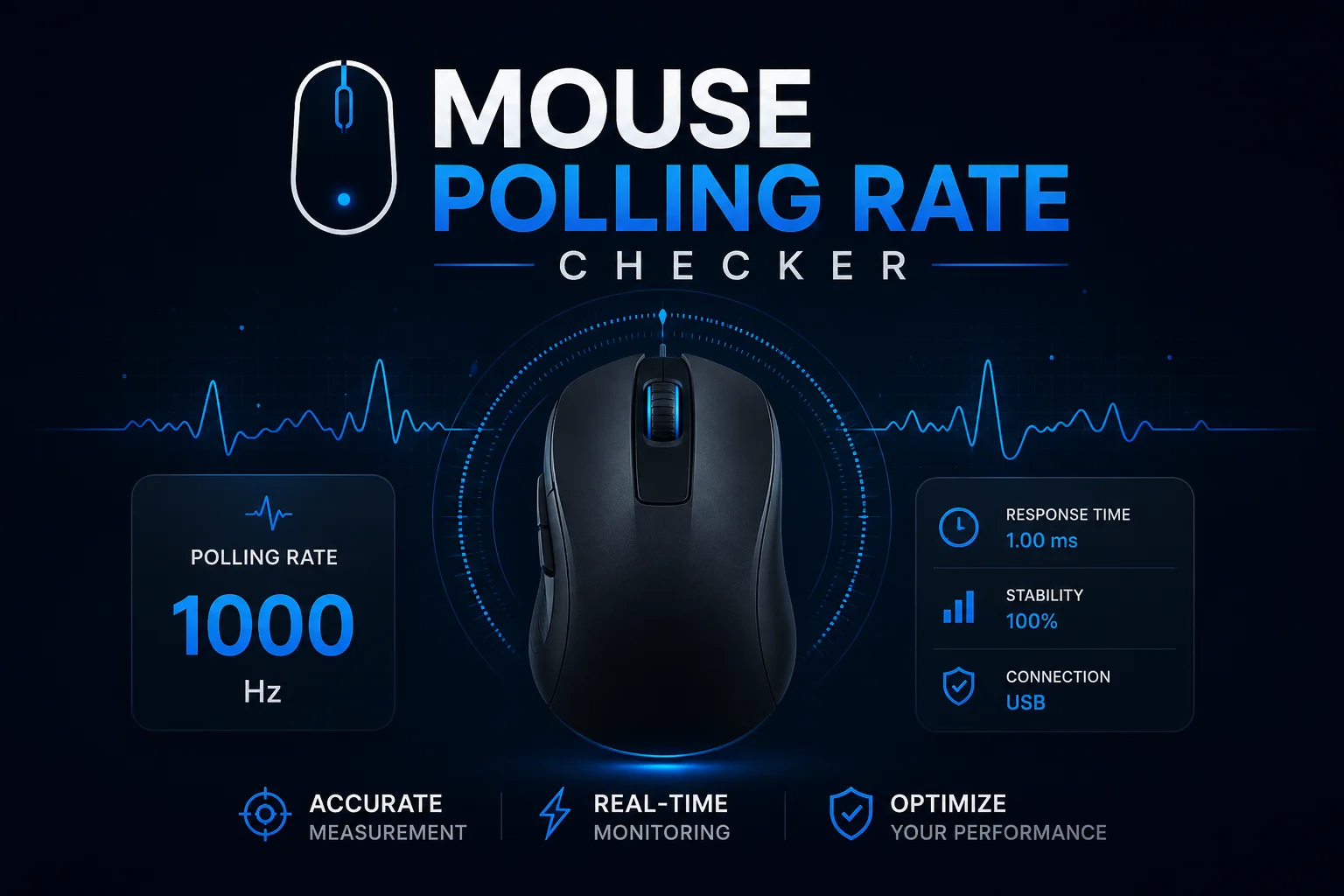
Use this mouse polling rate checker to test how often your mouse sends movement data to your computer. Polling rate is measured in Hz. A 1000Hz mouse reports its position up to 1000 times per second, which means one report about every 1 millisecond.
For gaming, polling rate matters because it can affect how smooth and responsive your mouse feels. It does not change your DPI or your in game sensitivity, but it can change the feeling of aim, tracking, and flicking if your mouse reports movement more or less often.Checkout This Mouse DPI Calculator
What Is Mouse Polling Rate?
Mouse polling rate is the number of times your mouse reports its position to your PC every second.
Common polling rates are:
- 125Hz means the mouse reports every 8 milliseconds
- 250Hz means the mouse reports every 4 milliseconds
- 500Hz means the mouse reports every 2 milliseconds
- 1000Hz means the mouse reports every 1 millisecond
- 2000Hz means the mouse reports every 0.5 milliseconds
- 4000Hz means the mouse reports every 0.25 milliseconds
- 8000Hz means the mouse reports every 0.125 milliseconds
A higher polling rate sends mouse data more often. This can make movement feel smoother, especially on high refresh rate monitors, but the improvement gets smaller as the number gets higher.
How to Use a Mouse Polling Rate Checker
A polling rate test works by reading how often your mouse movement updates while you move it across the test area.
To get a better result:
- Move your mouse in circles or side to side inside the test area
- Move at a steady speed for a few seconds
- Do not test while your PC is lagging or loading heavy apps
- Test more than once and compare the average result
- Use a wired connection or strong wireless receiver placement if possible
If your mouse is set to 1000Hz, the result may not stay exactly at 1000 all the time. Small movement, browser limits, background apps, wireless signal, and system load can make the number jump slightly.
Mouse Polling Rate Chart
| Polling Rate | Report Interval | Best Use |
|---|---|---|
| 125Hz | 8 ms | Basic office mouse, casual use |
| 250Hz | 4 ms | Light gaming, older mice |
| 500Hz | 2 ms | Good for most gaming |
| 1000Hz | 1 ms | Best default for FPS and esports |
| 2000Hz | 0.5 ms | High refresh rate gaming |
| 4000Hz | 0.25 ms | Competitive players with strong hardware |
| 8000Hz | 0.125 ms | Advanced setups, very high refresh monitors |
Best Mouse Polling Rate for Gaming
For most players, 1000Hz is the best mouse polling rate for gaming. It is fast, stable, widely supported, and works well in games like Valorant, CS2, Apex Legends, Fortnite, Warzone, Overwatch 2, and Rainbow Six Siege.
Here is a simple guide:
- 125Hz is too slow for competitive FPS gaming
- 500Hz is playable and can feel stable on many systems
- 1000Hz is the best choice for most competitive players
- 2000Hz to 4000Hz can feel smoother on high refresh rate monitors
- 8000Hz is useful only if your mouse, CPU, game, and monitor can handle it well
If you are unsure, start with 1000Hz. It gives low latency without the extra compatibility issues that can appear with very high polling rates.
Does Polling Rate Affect Sensitivity?
Polling rate does not change your actual DPI or sensitivity formula. Your eDPI stays the same if your DPI and in game sensitivity stay the same.
Still, a different polling rate can make your mouse feel different because the movement updates arrive at a different rate. A higher polling rate may feel smoother. A lower polling rate may feel slightly less responsive.
Polling rate can affect the feeling of:
- Tracking moving enemies
- Small crosshair corrections
- Fast flick shots
- Micro movement on high refresh rate monitors
- Input smoothness in aim trainers
If you changed polling rate and your aim feels different, do not change your sensitivity immediately. Test it for a few matches first. The math did not change, but the input feel may need time to settle.
500Hz vs 1000Hz Mouse Polling Rate
The jump from 500Hz to 1000Hz is useful for gaming because it cuts the report interval from 2 milliseconds to 1 millisecond.
500Hz can be good if:
- Your PC has trouble with 1000Hz
- Your game stutters at higher polling rates
- You use an older mouse or older system
- You want more battery life on a wireless mouse
1000Hz is better if:
- You play Valorant, CS2, Apex, Fortnite, or Warzone
- You use a modern gaming mouse
- You want lower input delay
- Your PC handles it without stutter
For most players, 1000Hz is the safest competitive setting.
4000Hz and 8000Hz Polling Rate
Some modern gaming mice support 4000Hz or 8000Hz polling. These rates send mouse reports much more often than 1000Hz.
Higher polling rates can help most when you have:
- A high refresh rate monitor
- A strong CPU
- A game that handles high input rates well
- A mouse designed for high polling
- A clean wireless receiver setup if using wireless
But higher is not always better for every player.
Possible downsides include:
- More CPU usage
- Lower wireless battery life
- Possible stutter in some games
- Less stable results on weak systems
- Small improvement compared with 1000Hz for most players
If 4000Hz or 8000Hz feels smooth on your setup, you can use it. If your game stutters or your aim feels inconsistent, switch back to 1000Hz.
Best Polling Rate for Valorant
For Valorant, 1000Hz is the best polling rate for most players. Valorant rewards clean crosshair placement and small mouse corrections, so stable input matters.
Use this setup as a starting point:
- Mouse polling rate: 1000Hz
- Raw input buffer: test on and off if your mouse supports high polling
- DPI: 400, 800, or 1600 depending on preference
- Sensitivity: calculate your Valorant eDPI for better comparison
Best Polling Rate for CS2
For CS2, 1000Hz is also the best default choice. It is fast enough for competitive play and usually more stable than very high polling rates on average systems.
If you use 4000Hz or 8000Hz and notice stutter, uneven tracking, or FPS drops, test 1000Hz again. Smooth and stable input is more important than chasing the highest number.
You can pair your polling rate test with a CS2 eDPI calculator to make sure your sensitivity settings are also consistent.
How to Change Mouse Polling Rate
The way you change polling rate depends on your mouse brand.
Common methods include:
- Logitech G HUB
- Razer Synapse
- SteelSeries GG
- Corsair iCUE
- Glorious Core
- Zowie physical button under the mouse
- Mouse onboard memory settings
After changing the setting, run the mouse polling rate checker again to confirm your mouse is reporting near the value you selected.
Why Your Polling Rate Test Looks Unstable
Polling rate tests can move up and down while you test. This is normal.
Common reasons include:
- You are moving the mouse too slowly
- The browser cannot read very high rates perfectly
- Your wireless receiver is too far away
- Background apps are using CPU resources
- Your mouse lowers polling when idle
- Your USB port or cable is causing issues
- Your mouse software setting did not apply
For a better test, close heavy apps, move the mouse steadily, and test more than once.
Polling Rate and DPI
Polling rate and DPI are different settings.
- DPI controls how far your cursor or aim moves from mouse movement
- Polling rate controls how often the mouse sends movement updates
Changing DPI affects sensitivity. Changing polling rate affects input update speed.
If you change DPI, use a DPI converter to keep the same aim feel. If you want to compare sensitivity between games, use a game sensitivity converter.
FAQ:
What is a mouse polling rate checker?
A mouse polling rate checker is an online tool that tests how many times per second your mouse reports movement to your computer.
What is the best polling rate for gaming?
1000Hz is the best polling rate for most gaming setups. It gives low input delay and works well with modern gaming mice.
Is 500Hz enough for gaming?
Yes, 500Hz is enough for many players, but 1000Hz usually feels more responsive for competitive FPS games.
Is 8000Hz better than 1000Hz?
8000Hz can be faster on paper, but the real benefit depends on your mouse, PC, monitor, and game. Many players will be fine with 1000Hz.
Does polling rate change DPI?
No. Polling rate does not change DPI. DPI controls sensitivity. Polling rate controls how often movement data is sent.
Can polling rate affect FPS?
Very high polling rates can increase CPU load in some systems or games. If you notice stutter, try lowering the polling rate to 1000Hz or 500Hz.
Why is my 1000Hz mouse showing lower numbers?
Your mouse may show lower results if you move too slowly, use a weak wireless signal, have background CPU load, or test in a browser that cannot read every update perfectly.
Should I use 1000Hz for Valorant?
Yes. 1000Hz is a strong default for Valorant and works well for most competitive players.
Should I use 1000Hz for CS2?
Yes. 1000Hz is a good default for CS2. If higher polling rates cause stutter, return to 1000Hz.
Final Words
A mouse polling rate checker helps you confirm if your mouse is really running at 125Hz, 500Hz, 1000Hz, 4000Hz, or 8000Hz. For most gamers, 1000Hz is the best setting because it is fast, stable, and widely supported.
Use polling rate together with DPI, eDPI, and cm/360 to build a complete mouse setup. If your aim feels delayed, jumpy, or inconsistent, checking your polling rate is a smart first step.
Useful External References
If your mouse pointer speed feels wrong in Windows, check the Microsoft mouse settings guide.
For high polling rate gaming mice, Razer explains its Razer HyperPolling Technology and its 8000Hz wireless polling.