
Formula: New Sensitivity = Current Sensitivity × Current DPI × Current Windows Multiplier ÷ Target DPI ÷ Target Windows Multiplier. CS2 usually uses raw mouse input, so Windows pointer speed may not affect in-game aim.
A CS2 Windows Sensitivity Converter helps you match your mouse feel between Windows, CS2, and other FPS games. If your aim feels too fast, too slow, slippery, or different after changing DPI, Windows pointer speed, or game sensitivity, a converter gives you a cleaner way to fix it.
Instead of guessing, you can use real values like:
- Mouse DPI
- CS2 sensitivity
- Windows pointer speed
- eDPI
- cm per 360 turn
- inches per 360 turn
- Source engine yaw value
Top sensitivity tools such as CS2 eDPI Calculator all focus on one main idea: the same sensitivity number does not feel the same in every game. CS2, Valorant, Apex Legends, Fortnite, and Overwatch 2 all use different scaling, so proper conversion matters.
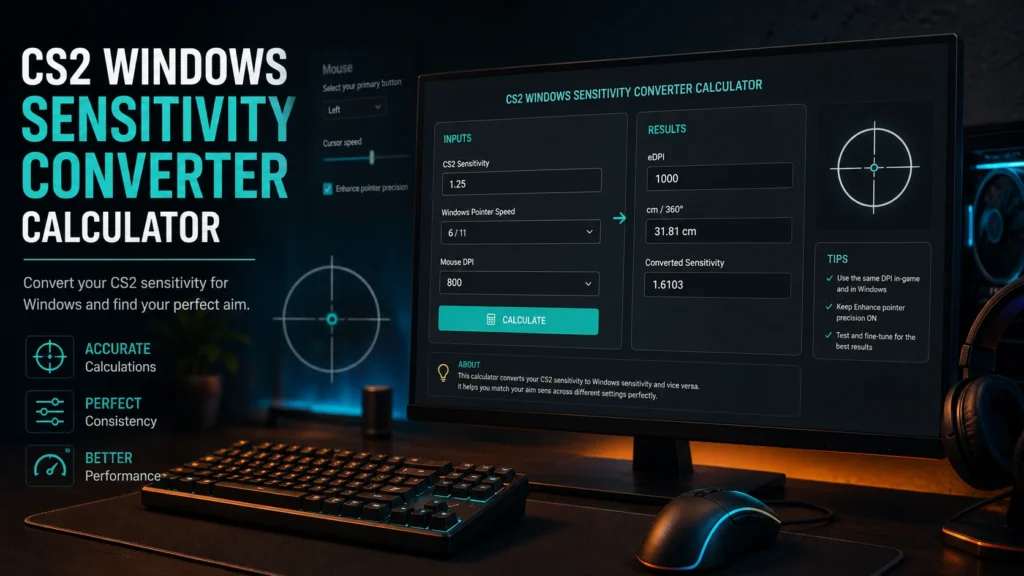
What Is a CS2 Windows Sensitivity Converter?
A CS2 Windows Sensitivity Converter is a tool that calculates how your mouse movement translates into your CS2 aim.
It usually works with:
- Your mouse DPI
- Your CS2 sensitivity
- Your Windows mouse setting
- Your current game
- Your target game
- Your 360 degree turn distance
For example, if you use 800 DPI and 1.0 sensitivity in CS2, your eDPI is:
800 × 1.0 = 800 eDPI
If you switch to 400 DPI and want the same aim speed, you would use:
400 × 2.0 = 800 eDPI
The number changes, but the feel stays close.
Why Windows Sensitivity Matters
Windows sensitivity controls how fast your cursor moves on the desktop. In CS2, the main aim feel comes from DPI and game sensitivity, but your Windows setup can still affect comfort, menus, and overall consistency.
For a stable setup, many players use:
- Windows pointer speed at 6 out of 11
- Enhance pointer precision turned off
- A fixed mouse DPI
- Raw input style aiming where available
- One CS2 sensitivity value saved in settings
This keeps your hand movement more predictable.
Key Terms You Need to Know
- DPI
Dots per inch. This is your mouse hardware speed. - Sensitivity
The CS2 setting that controls how fast your crosshair moves. - eDPI
Effective DPI. Multiply DPI by CS2 sensitivity. - cm per 360
How many centimeters your mouse must move to turn fully around in game. - in per 360
The same measurement in inches. - Yaw
The game engine value that decides how mouse movement becomes camera rotation.
How to Convert Windows Sensitivity to CS2 Sensitivity
Use this simple process:
- Check your mouse DPI in your mouse software
- Set Windows pointer speed to 6 out of 11
- Turn off Enhance pointer precision
- Open CS2 settings
- Enter your current CS2 sensitivity
- Use a converter to calculate eDPI and cm per 360
- Adjust until the movement feels controlled
- Test it in deathmatch or aim training
A common CS2 range is:
- 400 DPI with 1.5 to 3.0 sensitivity
- 800 DPI with 0.75 to 1.5 sensitivity
- 1600 DPI with 0.35 to 0.8 sensitivity
These are not rules. They are starting points.
CS2 Sensitivity Formula
The easiest formula is:
DPI × CS2 Sensitivity = eDPI
Examples:
- 400 DPI × 2.0 sens = 800 eDPI
- 800 DPI × 1.0 sens = 800 eDPI
- 1600 DPI × 0.5 sens = 800 eDPI
All three can feel very similar in CS2 because the eDPI is the same.
Best CS2 Windows Sensitivity Settings
For most players, a clean setup looks like this:
- Windows pointer speed: 6 out of 11
- Enhance pointer precision: Off
- Mouse acceleration: Off
- DPI: 400, 800, or 1600
- CS2 sensitivity: Adjust based on eDPI
- Polling rate: 500 Hz or 1000 Hz
- Large mousepad: Recommended for lower sensitivity
Good beginner target:
- 800 DPI
- 1.0 CS2 sensitivity
- 800 eDPI
- Medium to low aim speed
Good low sensitivity target:
- 400 DPI
- 1.8 CS2 sensitivity
- 720 eDPI
Good faster target:
- 800 DPI
- 1.5 CS2 sensitivity
- 1200 eDPI
Why Your CS2 Aim Feels Different After Changing Windows Settings
Your aim can feel wrong because of:
- DPI changed in mouse software
- Windows pointer speed changed
- Enhance pointer precision turned on
- Mouse acceleration enabled
- Different USB port or mouse profile
- CS2 config reset
- Steam cloud loaded old settings
- New mousepad surface
- Different resolution or aspect ratio
- Different FPS or input delay
Before changing sensitivity, check your DPI and Windows settings first.
CS2 to Valorant Sensitivity Example
Many converters use game yaw values to match movement between games. That is why a value of 2.0 in CS2 is not the same as 2.0 in Valorant.
A converter can show:
- CS2 sensitivity
- Valorant equivalent
- eDPI
- cm per 360
- inches per 360
This helps you keep muscle memory when switching games.
Quick Tips for Better CS2 Sensitivity
- Do not change sensitivity every match
- Test one setting for at least a few days
- Use eDPI instead of only sensitivity
- Keep Windows pointer speed consistent
- Turn off pointer acceleration
- Use the same DPI across games
- Track your cm per 360
- Lower sensitivity can improve rifle control
- Higher sensitivity can help fast turns
- Pick comfort before copying pro settings
FAQs
What is a CS2 Windows Sensitivity Converter?
A CS2 Windows Sensitivity Converter helps you match your Counter-Strike 2 mouse feel with your Windows mouse sensitivity settings. It is useful when you want consistent aim and movement across your desktop and in-game setup.
Does Windows sensitivity affect CS2 sensitivity?
CS2 mainly uses in-game sensitivity and mouse DPI for aiming. However, Windows pointer settings can still affect general mouse feel outside the game, and some players prefer to keep Windows pointer speed at the default 6/11 setting for consistency.
What is the best Windows sensitivity for CS2?
Many CS2 players use the default Windows pointer speed of 6/11 and disable pointer precision. This helps avoid extra acceleration and keeps mouse movement more predictable.
Should I turn off Enhance Pointer Precision for CS2?
Yes, most competitive FPS players turn off Enhance Pointer Precision because it adds mouse acceleration in Windows. Turning it off can make your aim feel more consistent and easier to control.
How do I calculate CS2 eDPI?
To calculate CS2 eDPI, multiply your mouse DPI by your in-game sensitivity. For example, 800 DPI with 1.2 sensitivity equals 960 eDPI.
What is a good eDPI for CS2?
Many CS2 players use an eDPI between 600 and 1200, but the best value depends on your mousepad size, aiming style, and comfort. Lower eDPI gives more control, while higher eDPI allows faster turns.
Does changing DPI change CS2 sensitivity?
Yes. Your final CS2 mouse speed depends on both DPI and in-game sensitivity. If you increase DPI without lowering in-game sensitivity, your aim will feel faster.
Can I use the same sensitivity from CS:GO in CS2?
In most cases, CS:GO and CS2 use the same sensitivity scale, so the same in-game sensitivity should feel very similar. Small differences may still come from hardware, display settings, or personal feel.
Why does my CS2 sensitivity feel different?
CS2 sensitivity may feel different because of DPI changes, Windows pointer settings, mouse acceleration, polling rate, resolution, refresh rate, or changes in your setup. Checking these settings can help restore a familiar mouse feel.
Is low sensitivity better for CS2?
Low sensitivity is popular in CS2 because it can improve precision for crosshair placement and recoil control. However, the best sensitivity is the one that lets you aim accurately while still turning comfortably.
Final Thoughts
A CS2 Windows Sensitivity Converter is useful because it removes guesswork. You can match your DPI, Windows pointer speed, CS2 sensitivity, eDPI, and 360 distance with real numbers instead of random testing.
For the most consistent setup, keep Windows pointer speed at 6 out of 11, turn off Enhance pointer precision, choose one DPI, then adjust CS2 sensitivity through eDPI and cm per 360. Once it feels right, stop changing it and let your muscle memory build.
External Refrences:
Here are good external references you can use for your “CS2 Windows Sensitivity Converter” page on edpicalculator.net:
- Computer Mouse - Wikipedia
Useful for explaining DPI/CPI and mouse sensitivity concepts. - r/GlobalOffensive Reddit Search: CS2 sensitivity
Good community reference for player discussions about CS2 mouse feel, sensitivity, input, and settings. - r/FPSAimTrainer Reddit Search: CS2 sensitivity
Useful for aim-training style discussions around sensitivity, eDPI, and FPS mouse control.